
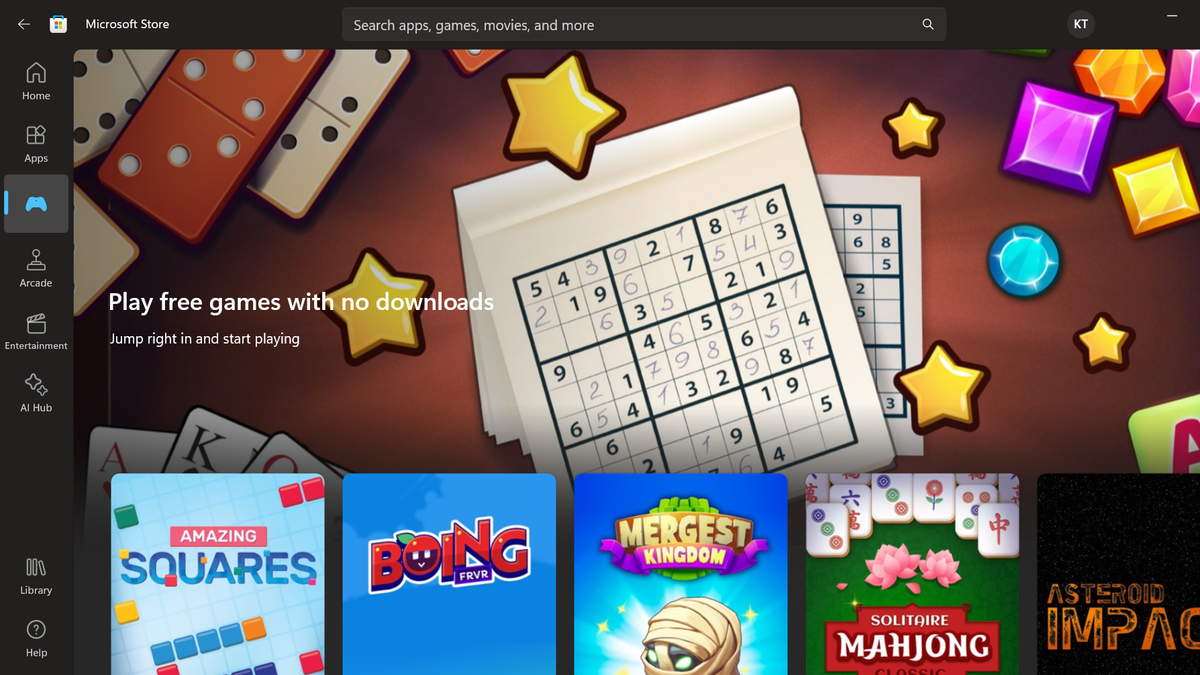
The Microsoft Store in Windows 11 is about to get a handy new feature that lets you try games without having to download and install them – but will this innovative feature make the unloved app store more popular?
The Microsoft Store has a pretty large library of games on offer, both for sale and to download for free. However, it’s been lacking the ability to preview a game before downloading and installing it.
That’s about to change for some games as Microsoft is now giving users the chance to play certain titles instantly right in the Microsoft Store app in Windows 11 – no installation needed. These “Instant Games” are short, easy-to-play games that can be played casually and don’t require a ton of effort to master. They will be located in the ‘Collection’ section in the Microsoft Store, which can be found by clicking on the Gaming tab in the Microsoft Store (this is what it opens to when you open the app), and scrolling to the very bottom. Once you click Collections, you’ll be greeted with the Microsoft Store’s collections of games.
There’s no explicit Instant Games yet, but they should start appearing under a collection named “Play free games with no downloads”. According to Windows Latest, Instant Games will be indicated with an orange lightning logo. This isn’t how the games show up for me, but this could change soon. It seems like the Instant Games feature is still possibly a work in progress as Microsoft Store version 22312.1401.4.0 has an icon in the left-hand vertical menu that should take you straight to the Instant Games collection, but in Microsoft Store version 22312.1401.5.0 (a later build) the icon has been removed.
Looking ahead and how you can play Instant Games
Windows Latest states that Microsoft partnered with a number of game developers to make Instant Games a reality, and that there are currently 69 games that users will be able to play instantly within the Microsoft Store app. Also, it looks like Microsoft is planning to expand the Instant Games selection and work with more game developers. It’ll be interesting to see if Microsoft will partner with game makers to create playable Instant Game demos of their games, as this could be a great addition to the Microsoft store that’ll help users make more informed decisions about what games they purchase and download.
Here’s how you can get Instant Games in your Microsoft Store for yourself (if they don’t show up already):
1. Update your Microsoft Store app to the latest version. You can do this by going to your Library in the Microsoft Store in the left-hand menu, toward the bottom. If your apps don’t update automatically, here you can navigate and choose which apps to update. Also, make sure you are connected to the Internet.
2. Once updated, go to Gaming in your Microsoft Store left-hand menu (towards to top).
3. Scroll all the way down to Collections and click on Collections (the word) to open this section.
4. Choose a game, hover over it and click the game artwork. This will take you to the game’s page and you can choose to either Play Now, or Get to download and install the game. If you click Play Now, this will launch a new window that will allow you to play the game.

First impressions of Instant Games
When I tried it, it ran very smoothly, which makes sense as the games consume very little system resources. Perhaps inevitably, all of the games contain ads. Windows Latest suggests that you might encounter a 30-second ad when, for instance, you try to reattempt a level, but you can bypass this by simply going back to the main menu. If you close a game, your progress will be saved and you can pick up where you left up when you reopen the Microsoft Store. Microsoft’s Edge browser offers a similar instant gaming feature in its Sidebar.
They’re a good way to pass a few minutes, but the games I tried became very repetitive and they’re not optimized for full screen play. They open up in portrait mode and don’t have the most sophisticated graphics. It’s maybe a more symbolic offering on Microsoft’s part, as many similar games can easily be found for mobile on multiple platforms anyway. We’ll have to see if anyone actually plays these games and if this will foster any good will among users. If it’s user goodwill that Microsoft wants, there are other user requests they can fulfill like scaling back its constant prodding of users to install the Edge browser.